How it works
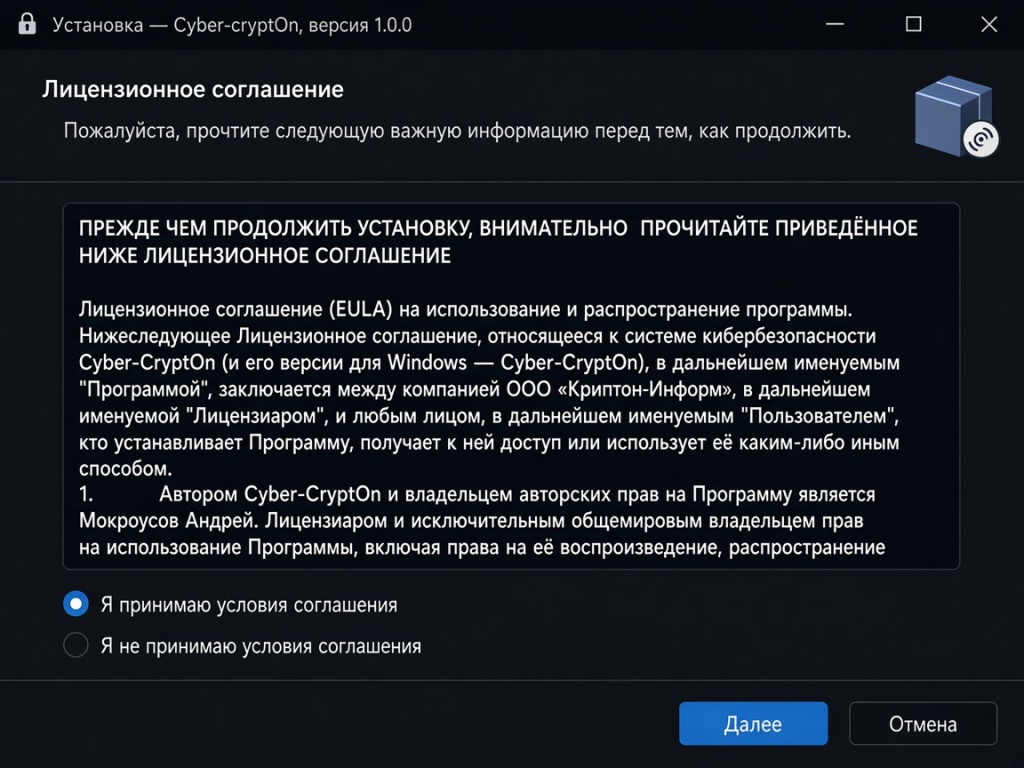
Install the latest version of Cyber-CryptOn
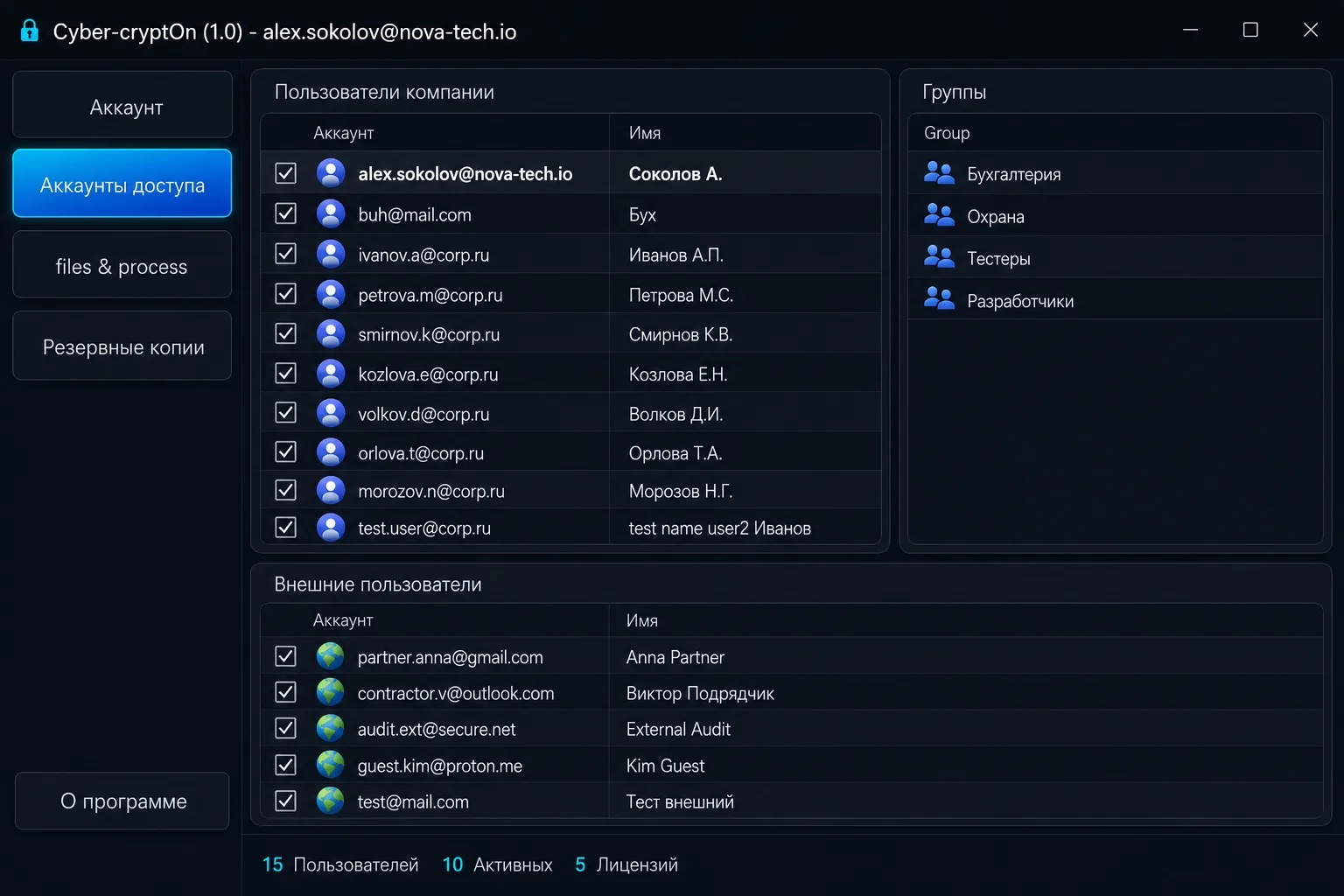
Add employees through the unified management console
Set access rights on the folder you want to protect
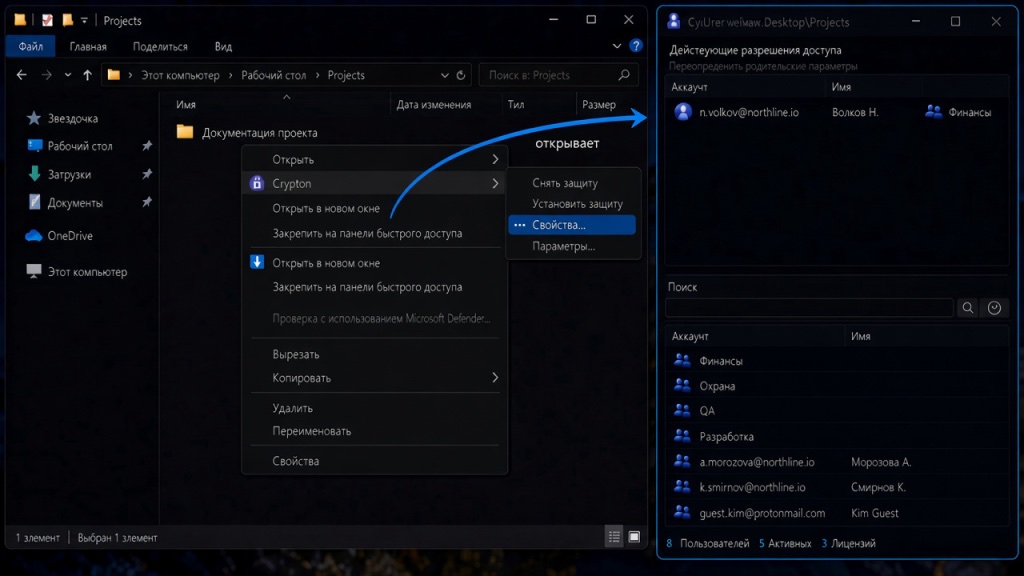
Create a new document and save it in the protected folder
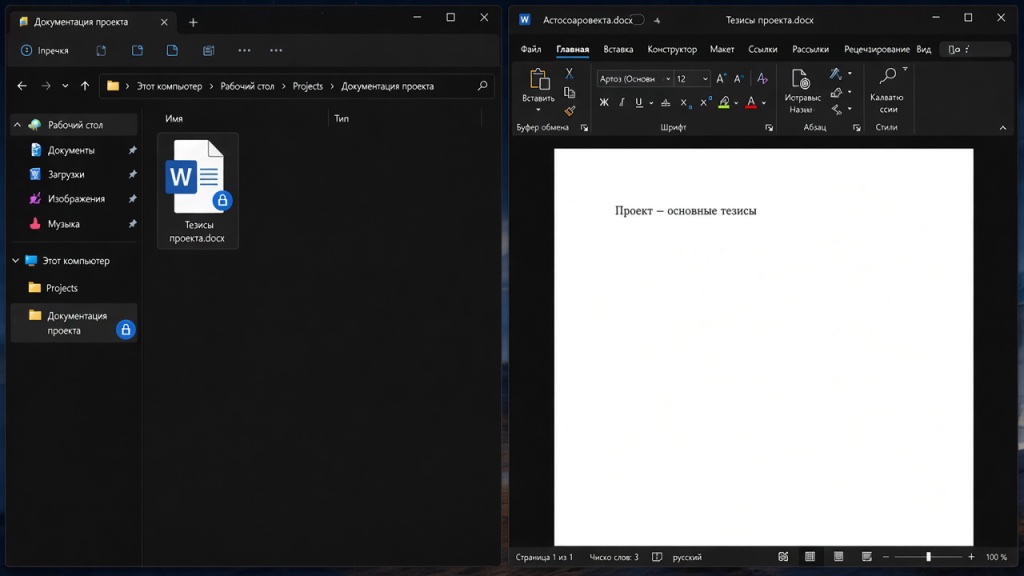
The document is protected automatically — no extra action is required from the user.
You can move existing documents into the protected folder. In that case, protection has to be applied to the moved documents manually with the corresponding command in the File Explorer context menu.
After that, working with protected documents requires no extra action from the user.
From now on, protection stays with the file. It can be removed manually with the corresponding File Explorer menu command.
Protected files can be safely shared over any available channel: messengers, email, cloud storage, USB drives and so on.
Only a user who is registered in Cyber-CryptOn and included in the access list of the protected folder (file) can access the information.
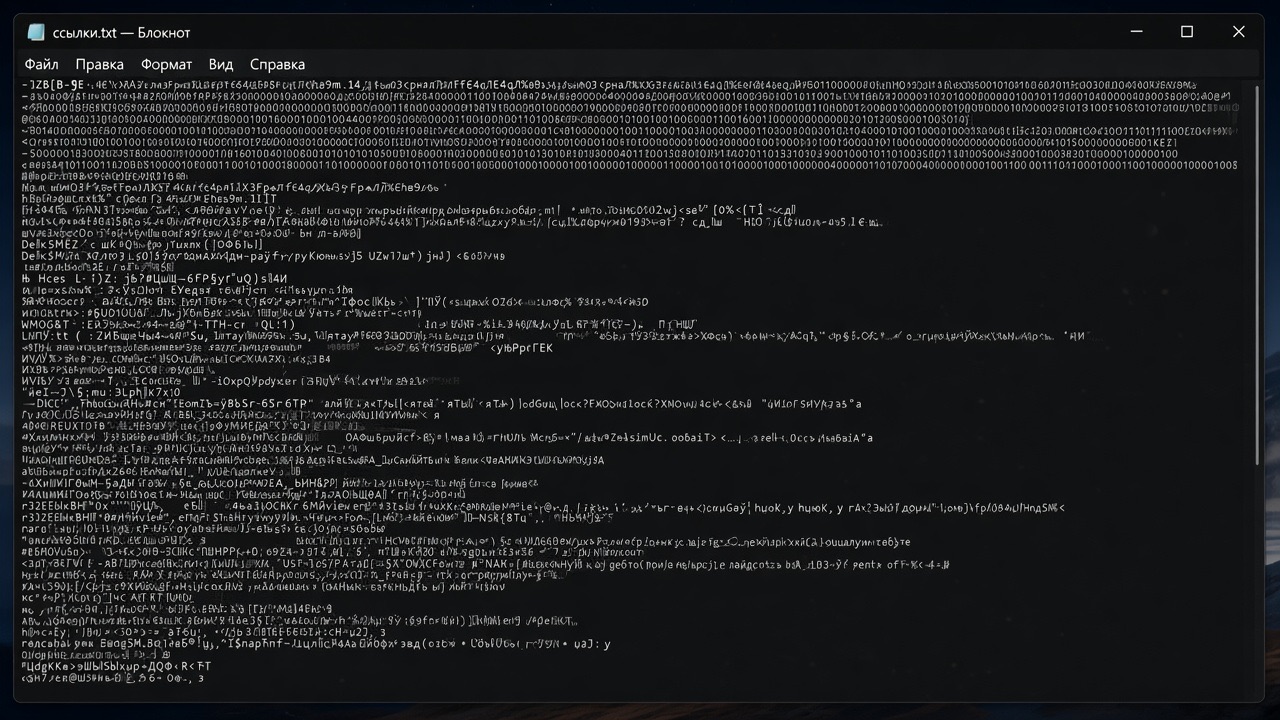
An attacker who gets hold of the file will not be able to extract any information from it. When they try to open the document, their application will treat the file as corrupted and beyond repair. The application will either refuse to open the file or display gibberish.
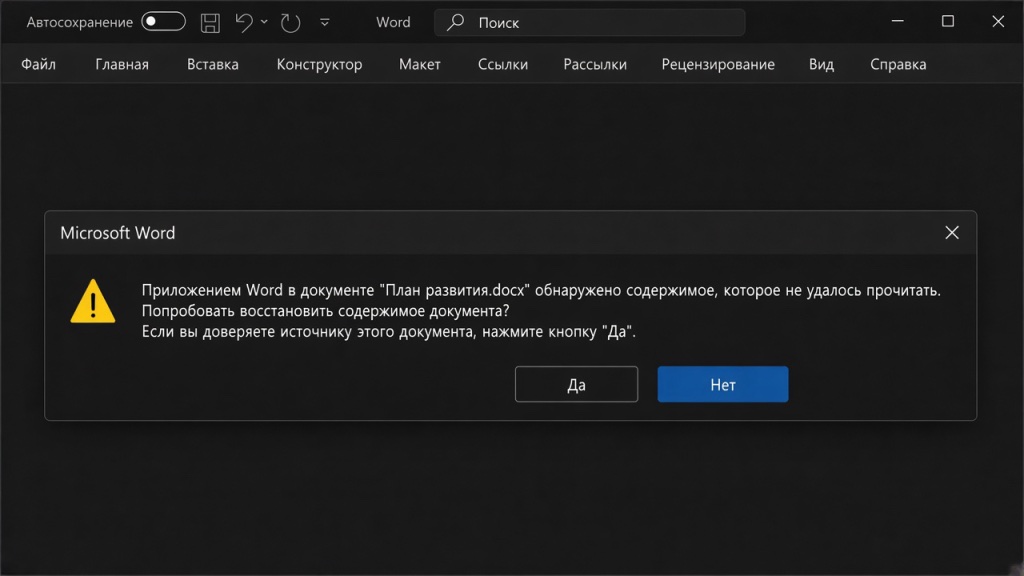
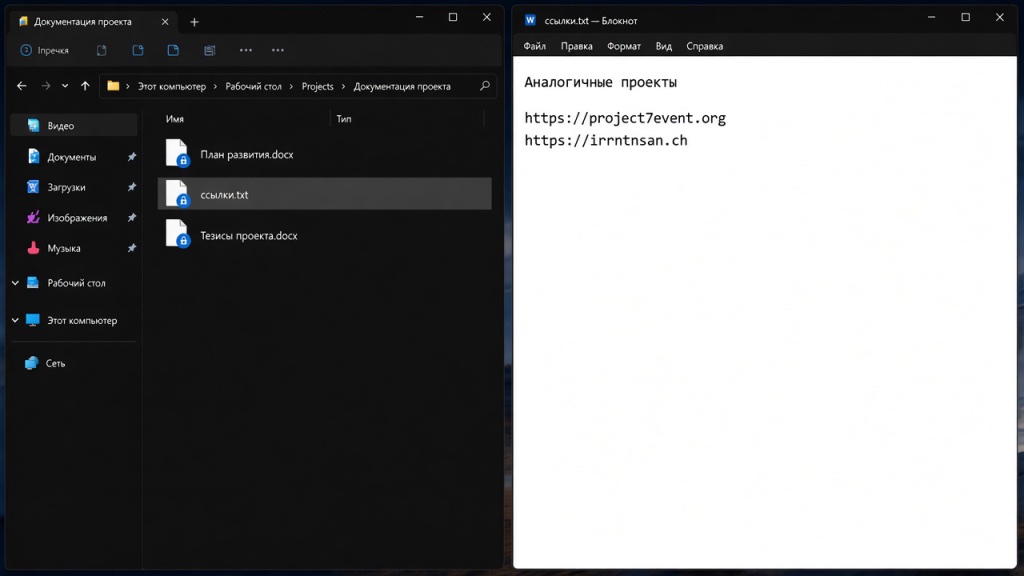
Here is how the same file looks in Notepad when opened by an authorised user and by an attacker: